Workflows
Contents
Overview
Workflows are used to configure automated actions that run when a Technology or List's contents change, triggered automatically after our weekly data updates.
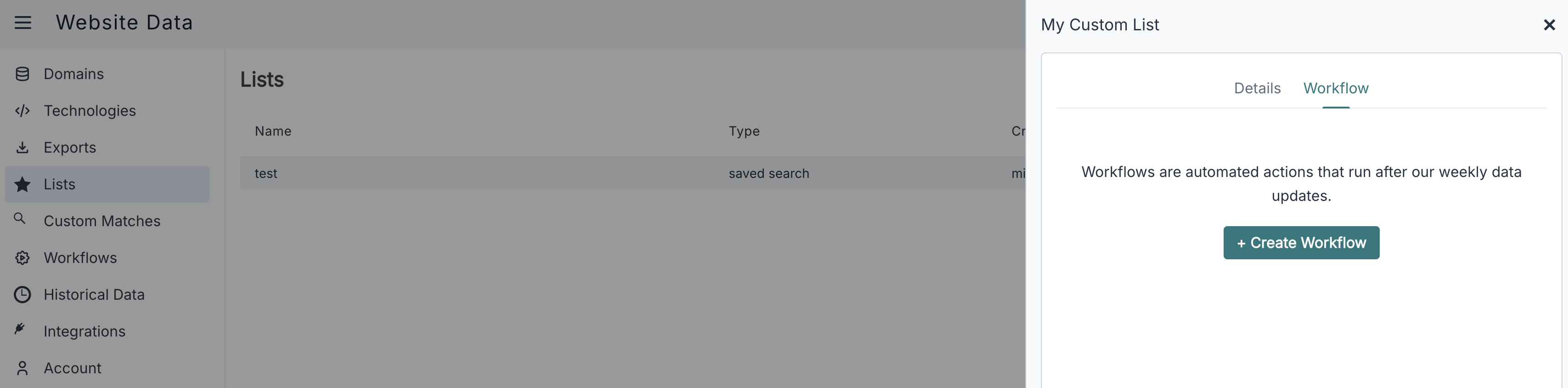
Creating a Workflow
-
To create a Workflow on a Technology or List, visit its page and click the Create Workflow button.
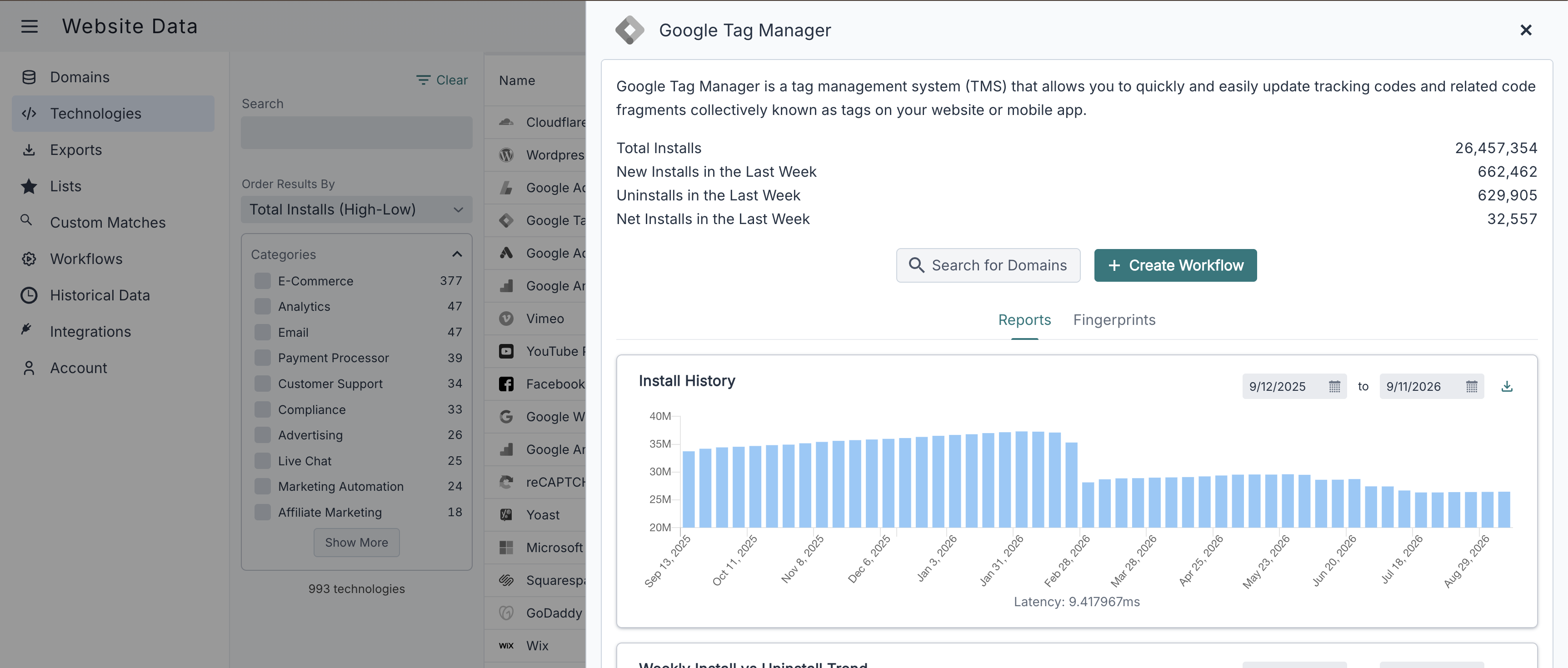 Create Workflow button on a Technology page.
 -
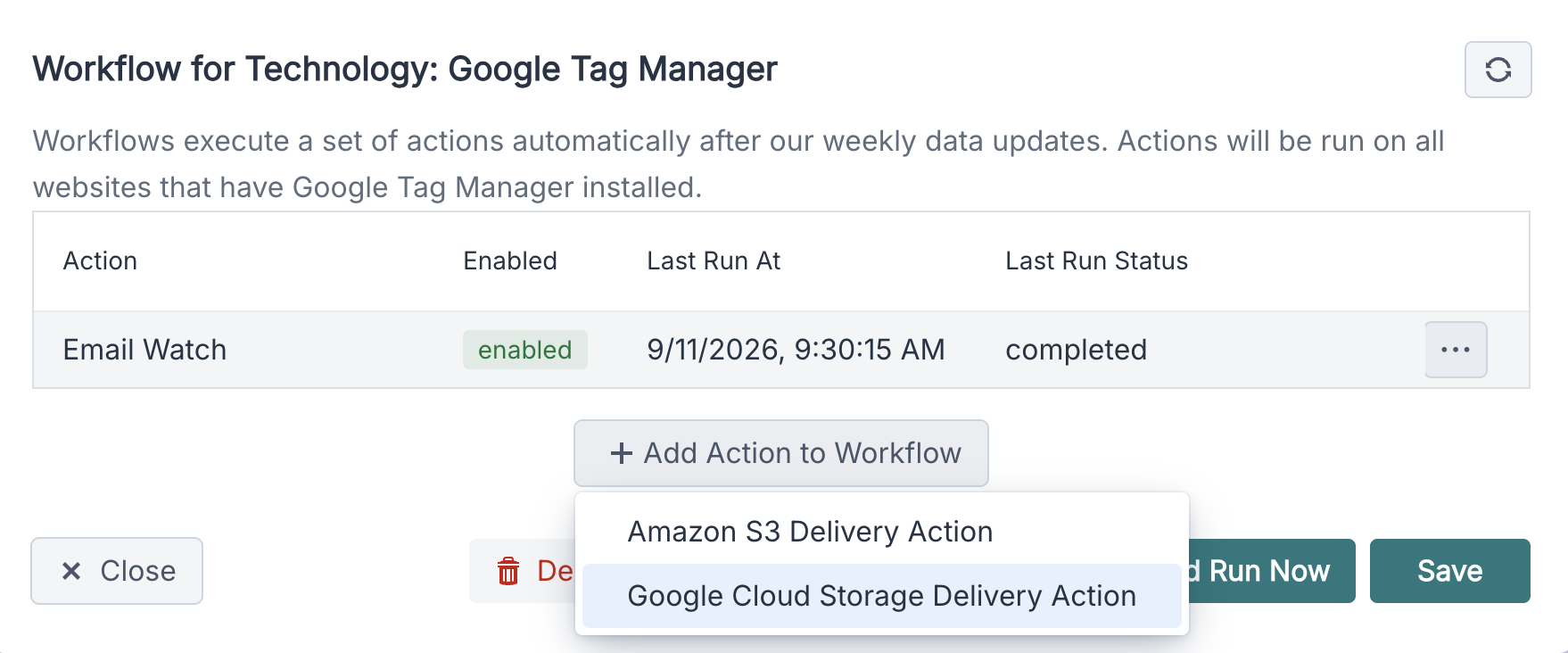
Click Add Action to Workflow and choose one or more actions for the workflow. Available actions are described in more detail below.
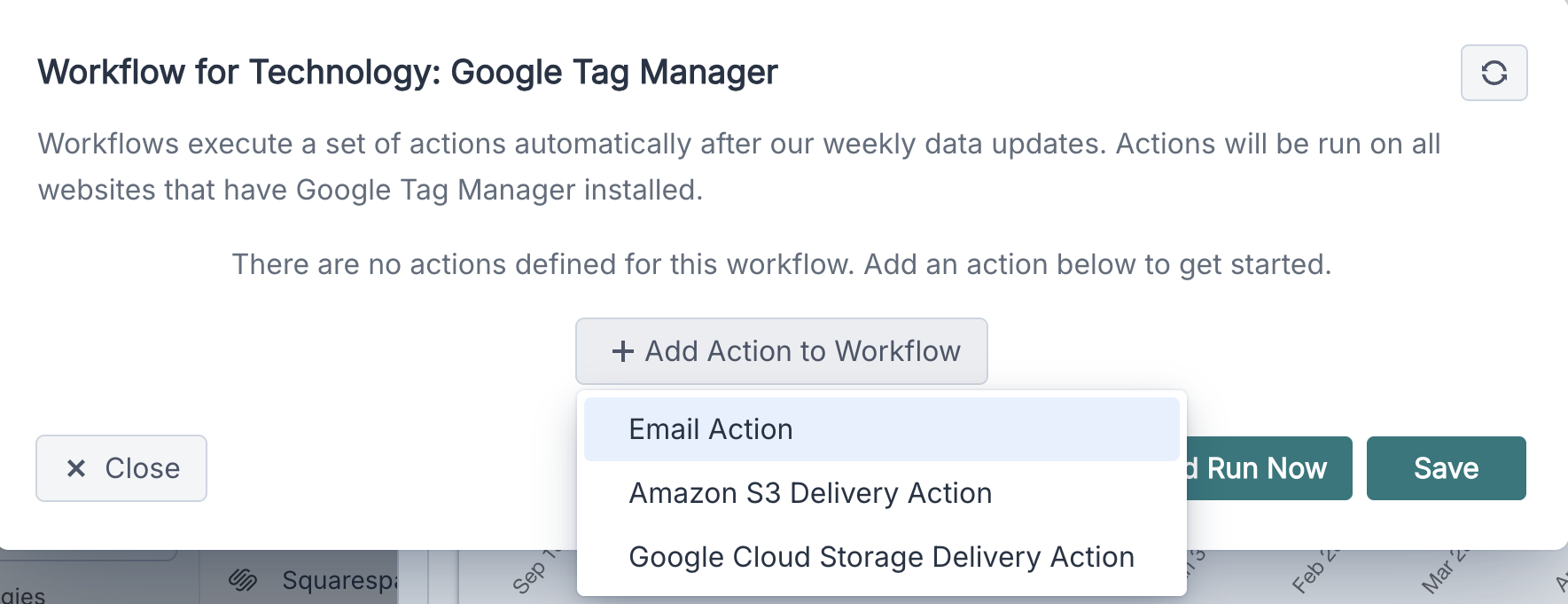 Choosing an action to add to a workflow.
 -
Click the Save button.
The actions will run automatically after our next weekly data update. If you want to run the workflow sooner, click Save and Run Now instead.
Workflow Actions
Workflows currently support the following actions:
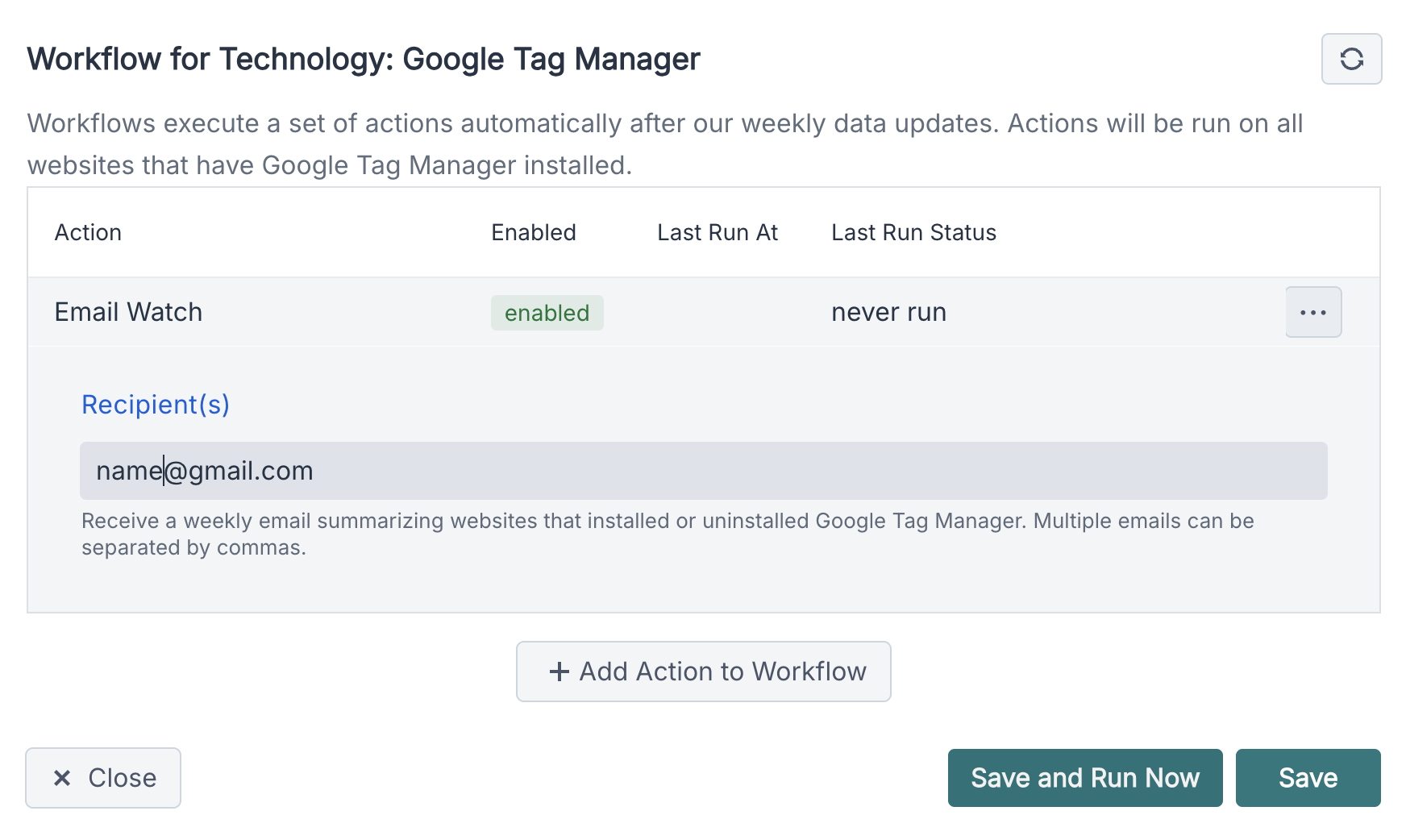
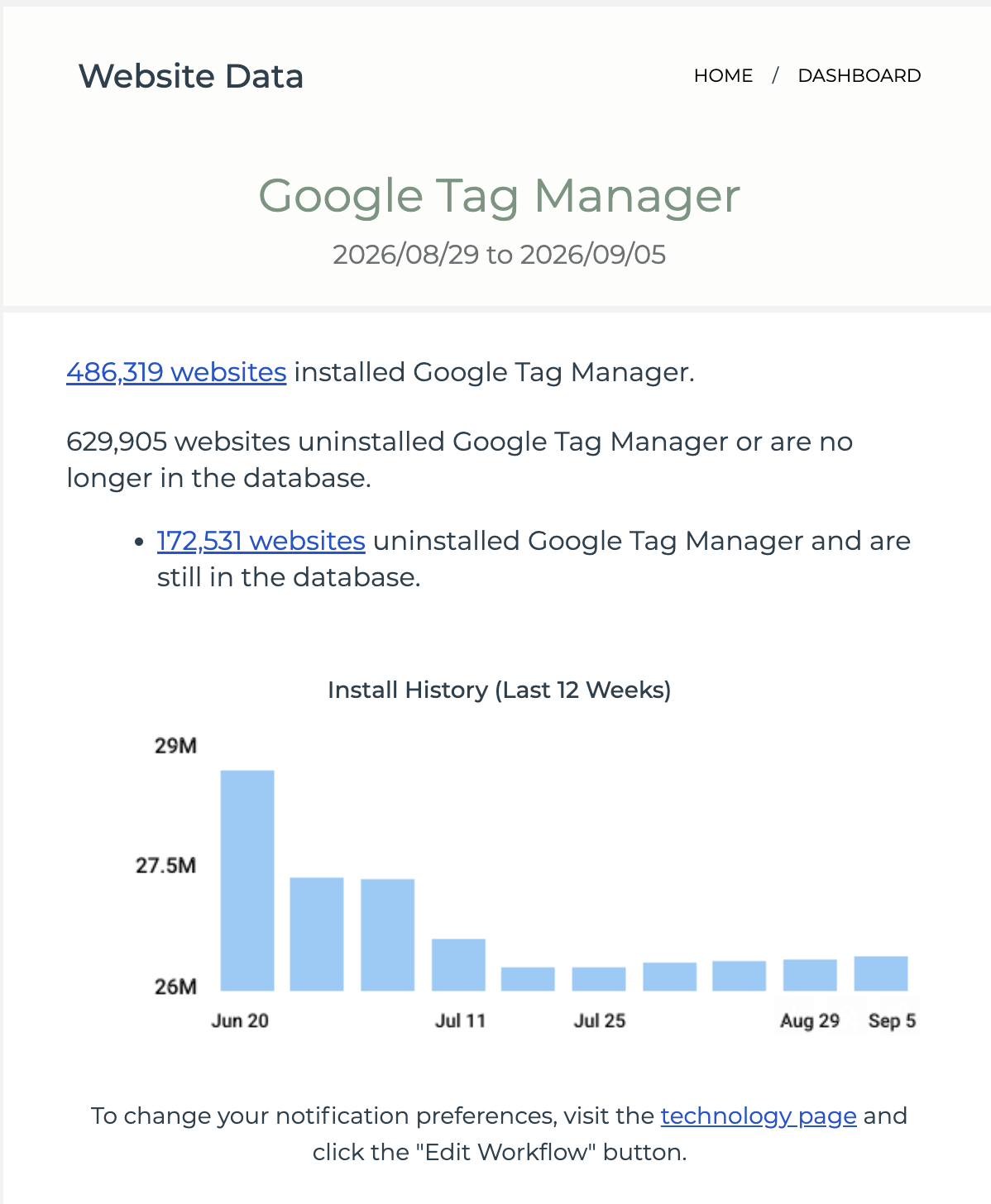
Email Action
This action sends an email summarizing the domains that installed or uninstalled the Technology, or that were added to or removed from the List, for the Workflow. The action can be configured to send the email to multiple recipients.
Amazon S3 Action
This action delivers data in JSONL format to Amazon S3. To use this action, the Amazon S3 integration must be enabled.
Google Cloud Storage Action
This action delivers data in JSONL format to Google Cloud Storage. To use this action, the Google Cloud Storage integration must be enabled.
Disabling Actions
Actions within a workflow can be disabled. A disabled action will be skipped the next time the workflow is run. This is useful when you want to run the same action again in the future without having to reconfigure it from scratch.
To disable an action, click on the action's menu icon and select Disable. The action can be enabled again from the same menu.
Removing a Workflow
If you wish to delete the workflow, and all of its actions, visit the Technology or List's page and click the Edit Workflow button. This will open the workflow configuration dialog. Click the Delete Workflow button to remove it.
Listing all Workflows
To see all of your existing Workflows across every Technology and List, visit the Workflows page in the Dashboard.