Amazon S3 Integration
Contents
Overview
Amazon AWS is a suite of cloud computing services. The S3 service is used for file/object storage.
Website Data customers often use our API to download large data files (in excess of 10GB). Handling API responses of that size can be a little challenging. To make things easier, the Amazon S3 integration can be used to deliver data files directly to Amazon S3.
Note that data export is only available to accounts on the Pro, Elite or Enterprise plans.
Enabling the Amazon S3 Integration
-
To enable the Amazon S3 integration, visit the Integrations page in the Dashboard and click Amazon S3.
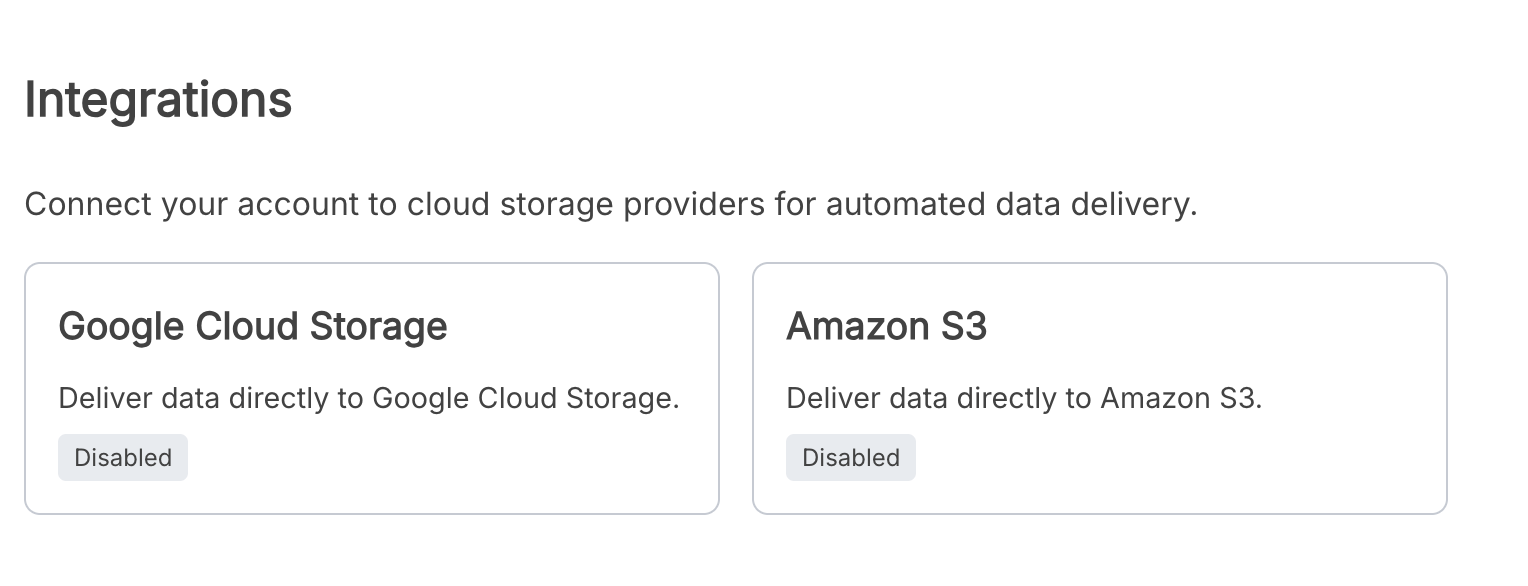 Select Amazon S3 on the Integrations page.
 -
On the Amazon S3 integration page, click Enable Amazon S3 Integration.
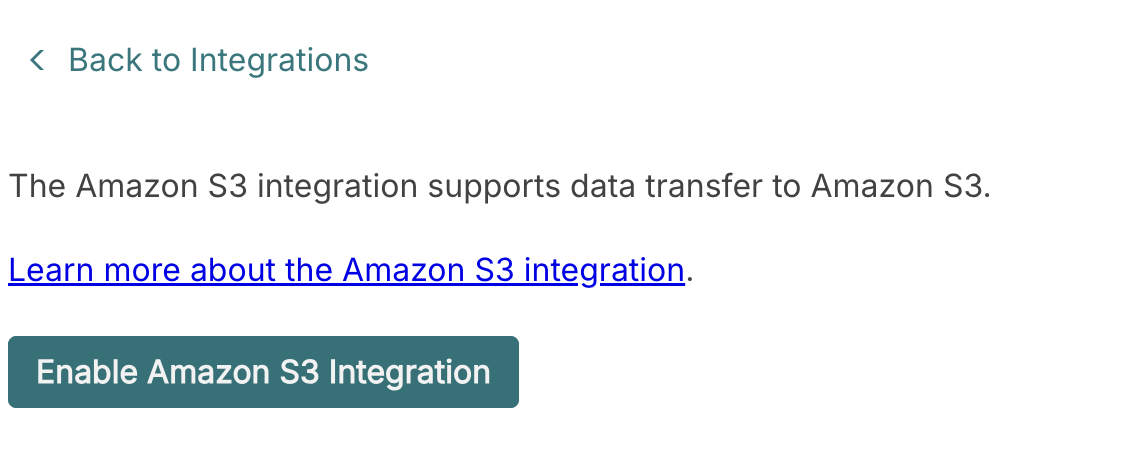 Enable the Amazon S3 integration.
 -
The integration page will display the Amazon principal after the integration is enabled.
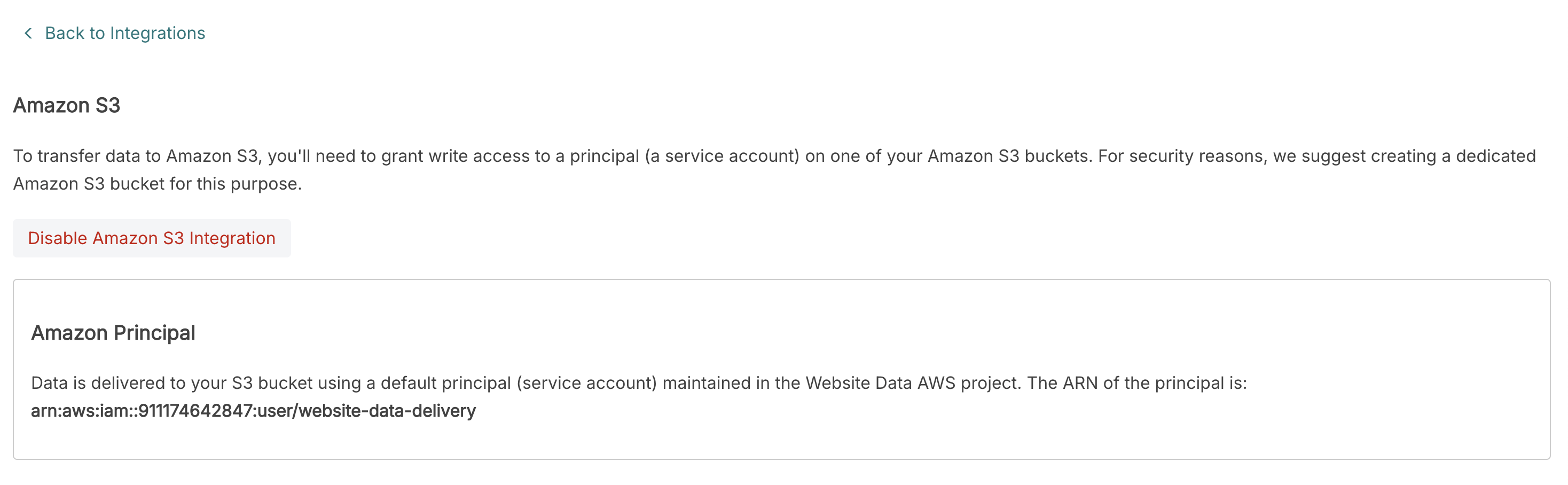 The enabled Amazon S3 integration and its Amazon principal.
Disabling the Amazon S3 Integration
To deactivate the integration, return to the Amazon S3 integration page and click Disable Amazon S3 Integration.
Credentials
To use the Amazon S3 integration, you'll first need to allow the Website Data AWS user to write to the S3 bucket.
The ARN of the Website Data AWS user is arn:aws:iam::911174642847:user/website-data-delivery
On the Permissions tab for the S3 bucket, you'll need to create a bucket policy similar to the following:
{
"Version": "2012-10-17",
"Id": "Policy2652715207062",
"Statement": [
{
"Sid": "Stmt2652715203218",
"Effect": "Allow",
"Principal": {
"AWS": "arn:aws:iam::911174642847:user/website-data-delivery"
},
"Action": [
"s3:GetObject",
"s3:PutObject",
"s3:PutObjectAcl"
],
"Resource": "arn:aws:s3:::your-bucket-name/*"
}
]
}
Delivering Data To Amazon S3
After the integration is enabled, data can be delivered using the Amazon S3 workflow action.
-
Create or edit a workflow for a Technology or List, then choose Amazon S3 Delivery as the workflow action.
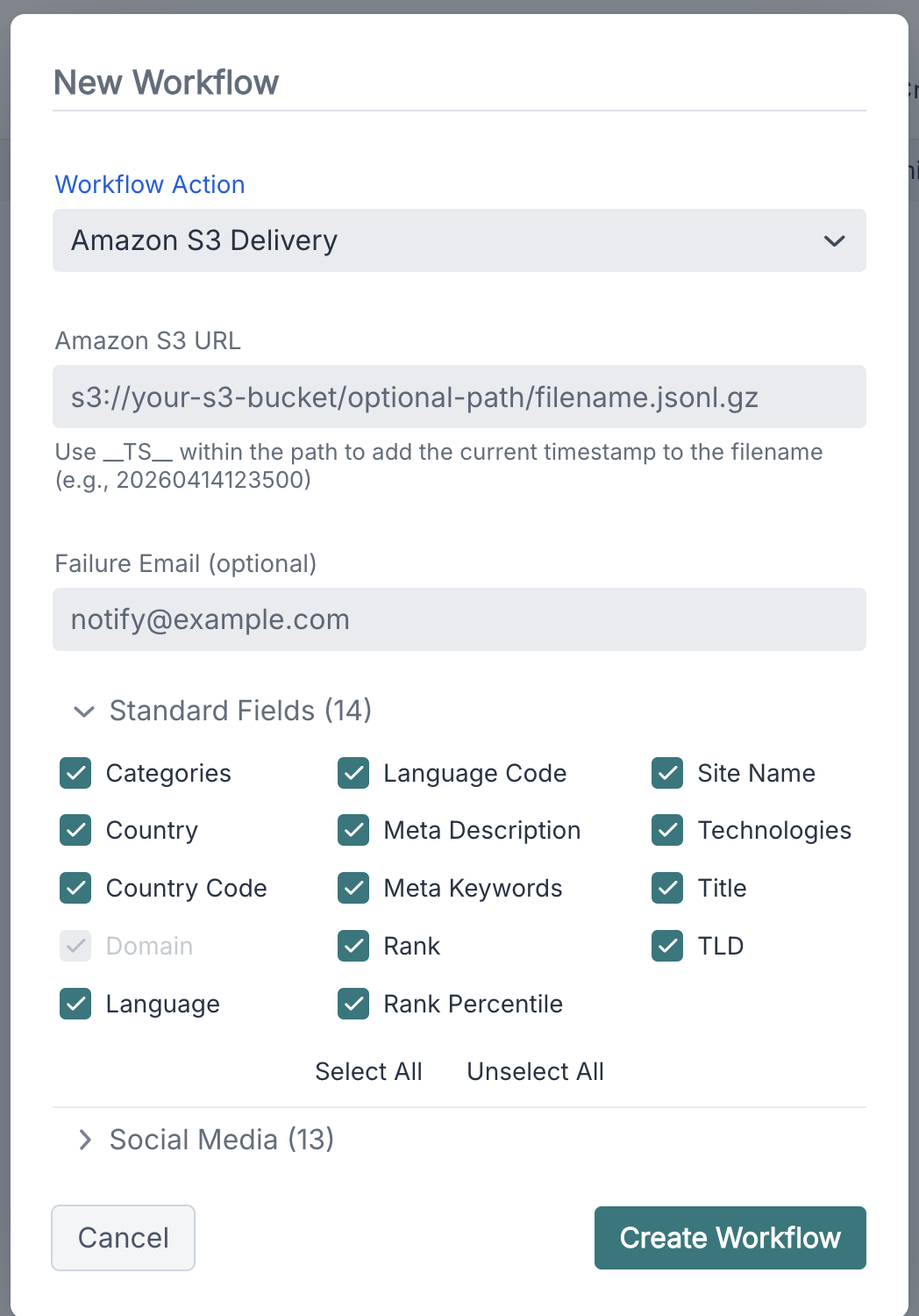 Configure an Amazon S3 Delivery workflow action.
 -
Enter an S3 URL that includes the bucket and optional path. You can include __TS__ in the path to add the current timestamp to the filename. You may also enter an email address for failure notifications and choose which fields to include in the data file.
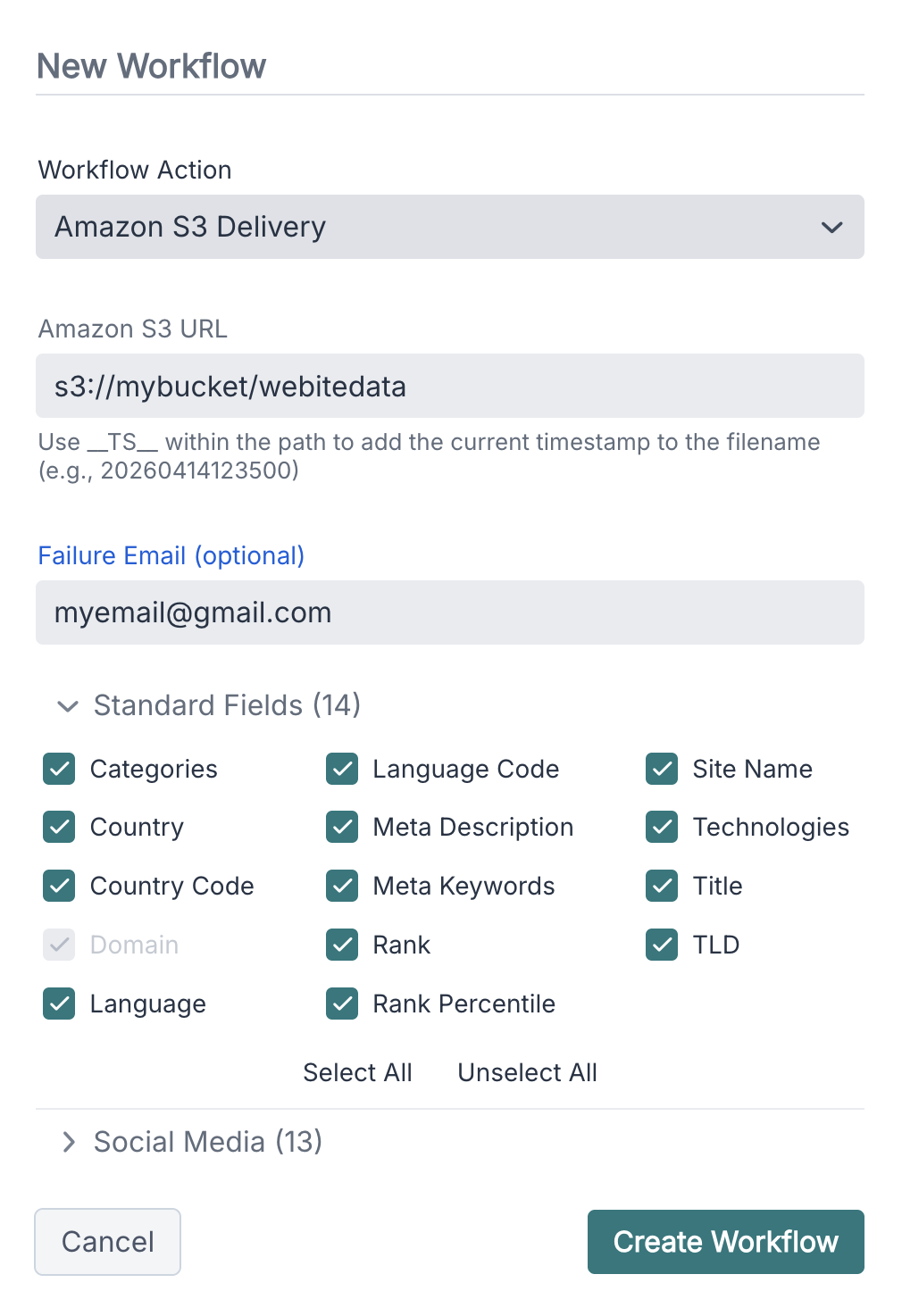 An example Amazon S3 Delivery workflow action.
 -
Click Create Workflow. The workflow will deliver JSONL data to the configured S3 URL when it runs.
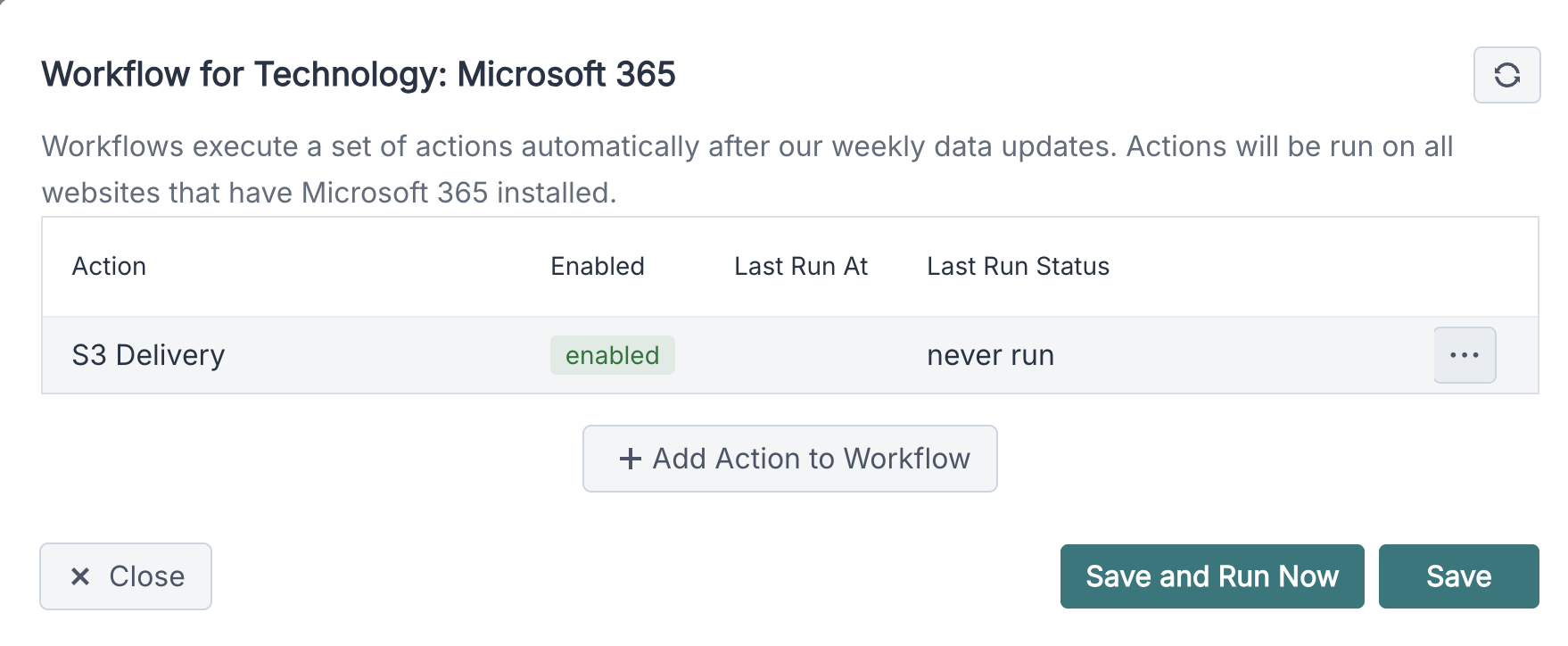 A workflow with an enabled Amazon S3 Delivery action.