Google Cloud Storage Integration
Contents
Overview
Google Cloud Platform is a suite of gcloud computing services. The Google Cloud Storage service is used for file/object storage.
Website Data customers often use our API to download large data files (in excess of 10GB). Handling API responses of that size can be a little challenging. To make things easier, the Google Cloud Storage integration can be used to deliver data files directly to Google Cloud Storage.
Data export is available to accounts on the Pro, Elite, or Enterprise plans.
Enabling the Google Cloud Storage Integration
-
To enable the Google Cloud Storage integration, visit the Integrations page in the Dashboard and select Google Cloud Storage.
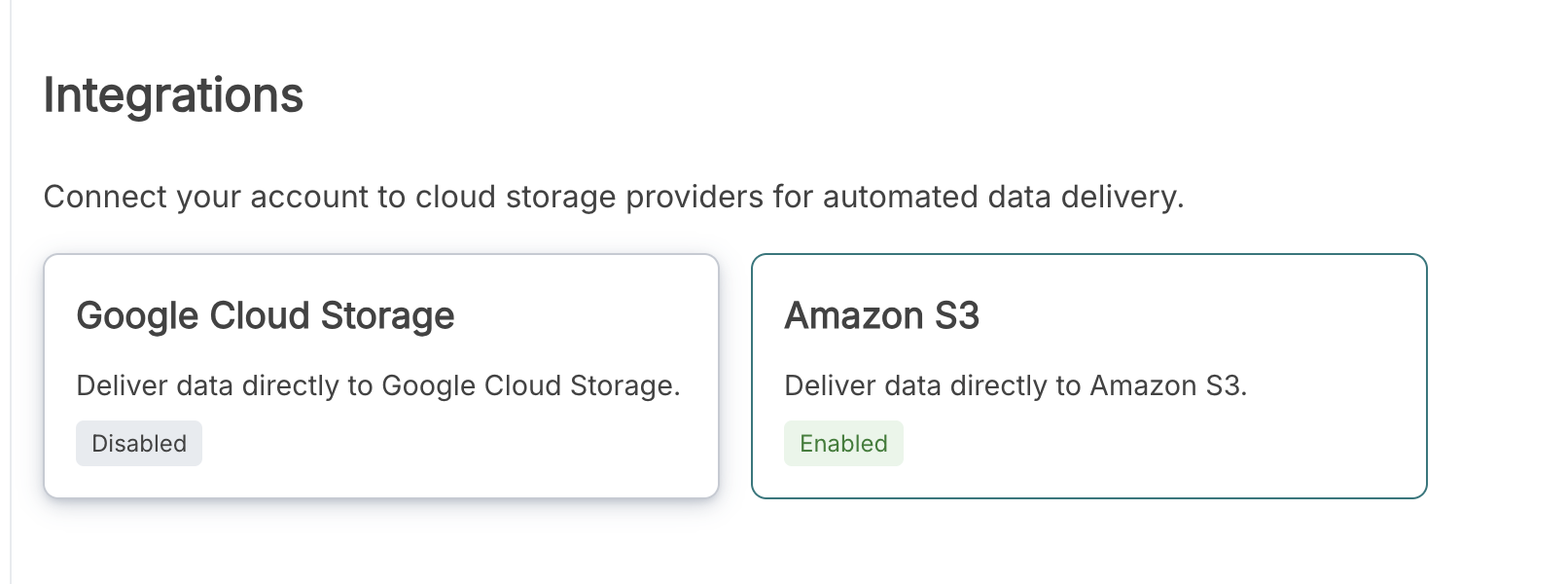 Select Google Cloud Storage on the Integrations page.
 -
Click Enable Google Cloud Storage Integration.
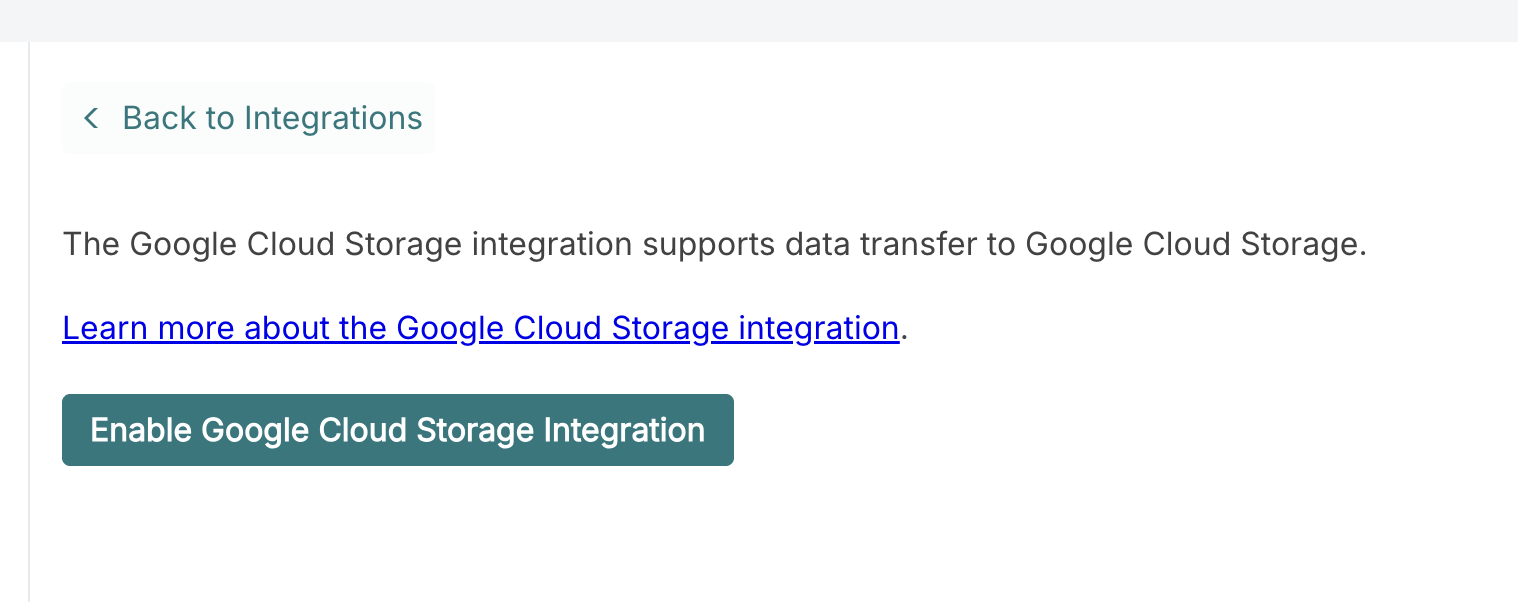 Enable the Google Cloud Storage integration.
 -
The enabled integration displays the Website Data service account. Grant it access to your bucket as described below.
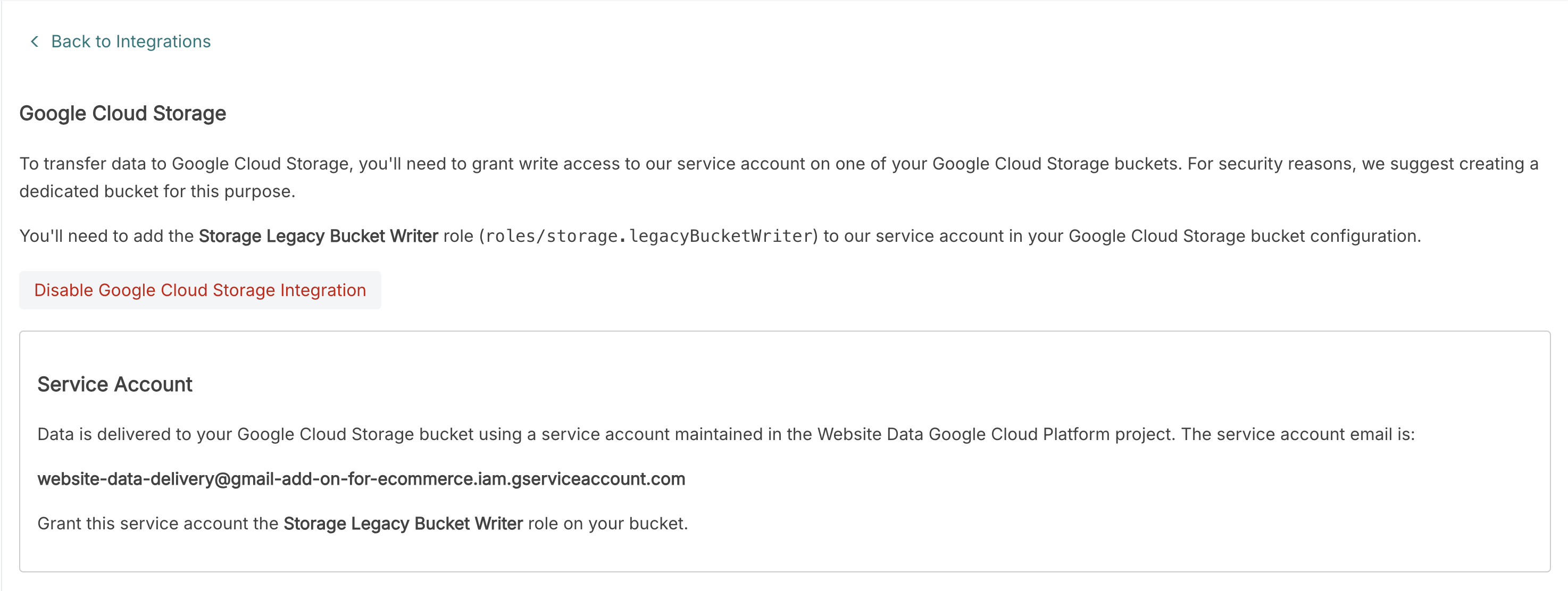 The enabled integration shows the service account to grant access to.
Disabling the Google Cloud Storage Integration
To deactivate the integration, click Disable Google Cloud Storage Integration on the integration page.
Granting Bucket Access
Create or choose a Google Cloud Storage bucket for delivery. We recommend a dedicated bucket for this purpose.
Grant the Storage Legacy Bucket Writer role
(roles/storage.legacyBucketWriter) on that bucket to the Website Data service account:
website-data-delivery@gmail-add-on-for-ecommerce.iam.gserviceaccount.com
Delivering Data To Google Cloud Storage
After enabling the integration and granting bucket access, add a
Google Cloud Storage workflow action to a List or Technology.
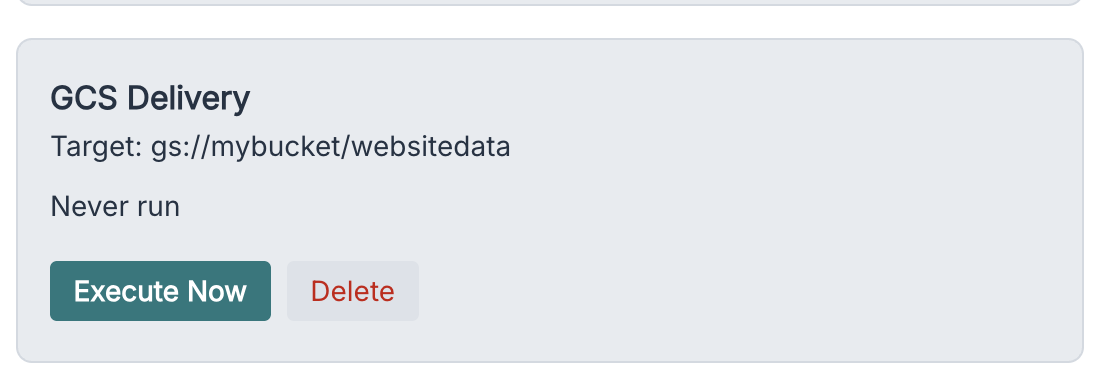
Enter a gs:// URL for the destination file, and select the fields to deliver.
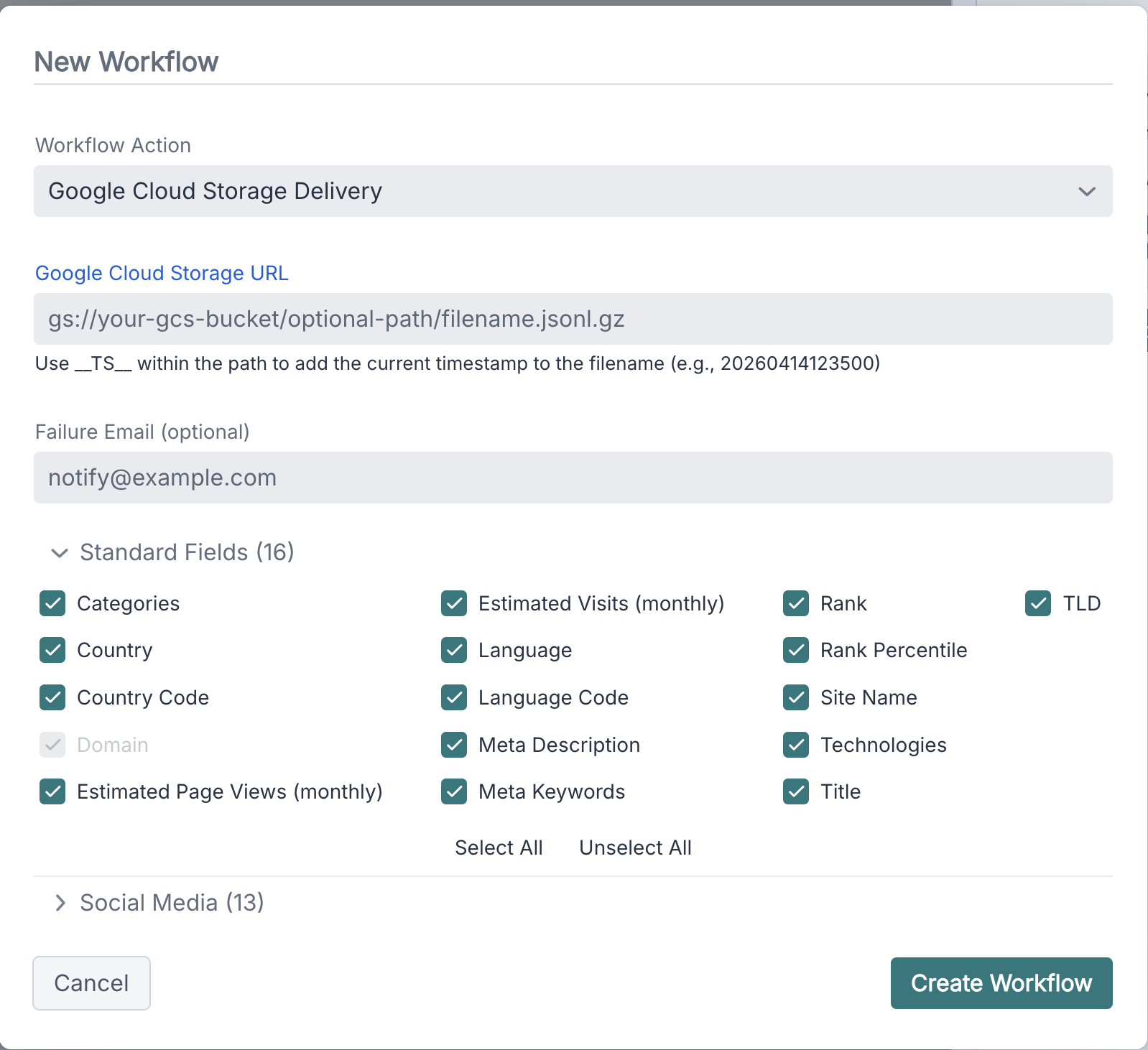
Once created, you can view the delivery action and run it from the Workflow tab.