MCP Server
Contents
Overview
The Website Data MCP server allows AI assistants to access Website Data directly through the Model Context Protocol (MCP). Once connected, you can ask your AI assistant questions about domains and technologies and it will query Website Data to provide answers.
The MCP server is available to all customers with API access. Claude Desktop and ChatGPT Desktop authenticate through your browser. Other clients may require a Website Data API key, which you can find on your Account page.
Setup
The Website Data MCP server is a remote server hosted at https://websitedata.app/mcp. No installation is required — configure your AI client to connect to the server using browser sign-in or an API key, depending on the client.
Claude Code (CLI)
Run the following command in your terminal, replacing YOUR_API_KEY with your Website Data API key:
claude mcp add -t http websitedata https://websitedata.app/mcp -H "Authorization: Bearer YOUR_API_KEY"
You can verify the server was added by running claude mcp list.
For more details, see the Claude Code MCP documentation.
Claude Desktop
-
Open Settings in Claude Desktop and select Connectors.
Select Add, then Add custom connector.
 Add a custom connector from Claude Desktop's Connectors settings.
 -
Enter Website Data for the name and
https://websitedata.app/mcpfor the remote MCP URL. Select Continue.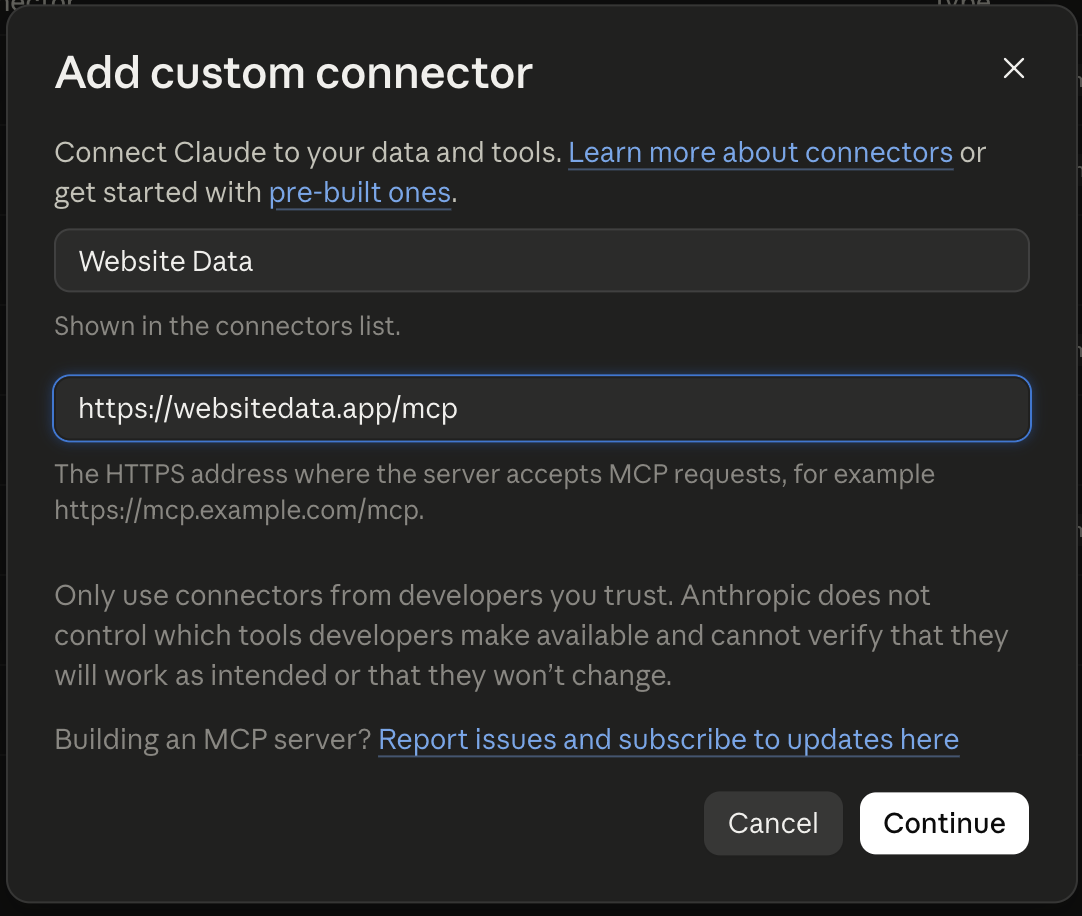 Enter the Website Data connector details.
 -
Keep Sign in now and Register automatically selected, then continue.
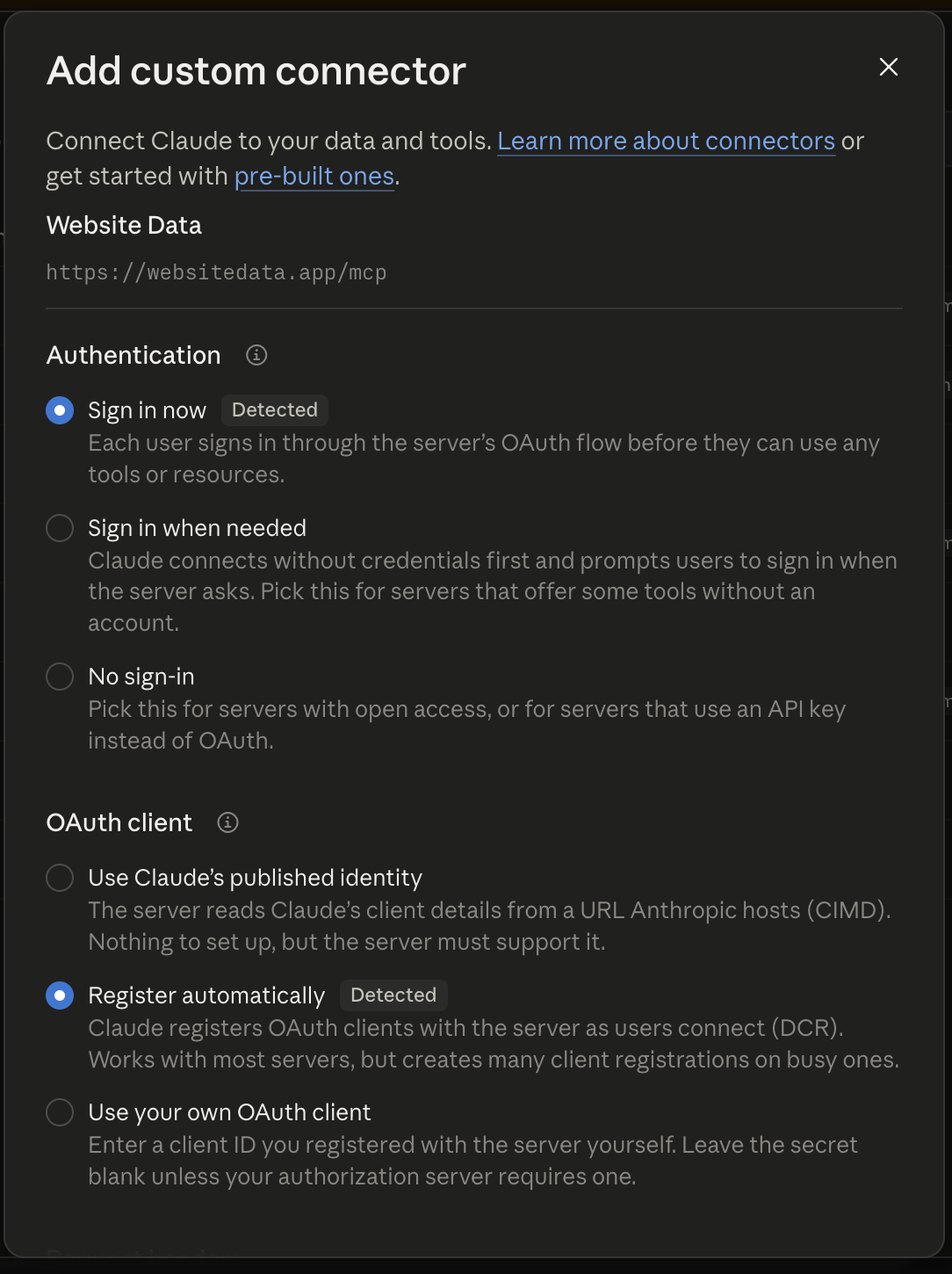 Use the detected sign-in and client registration options.
 -
Select Connect on the Website Data connector page.
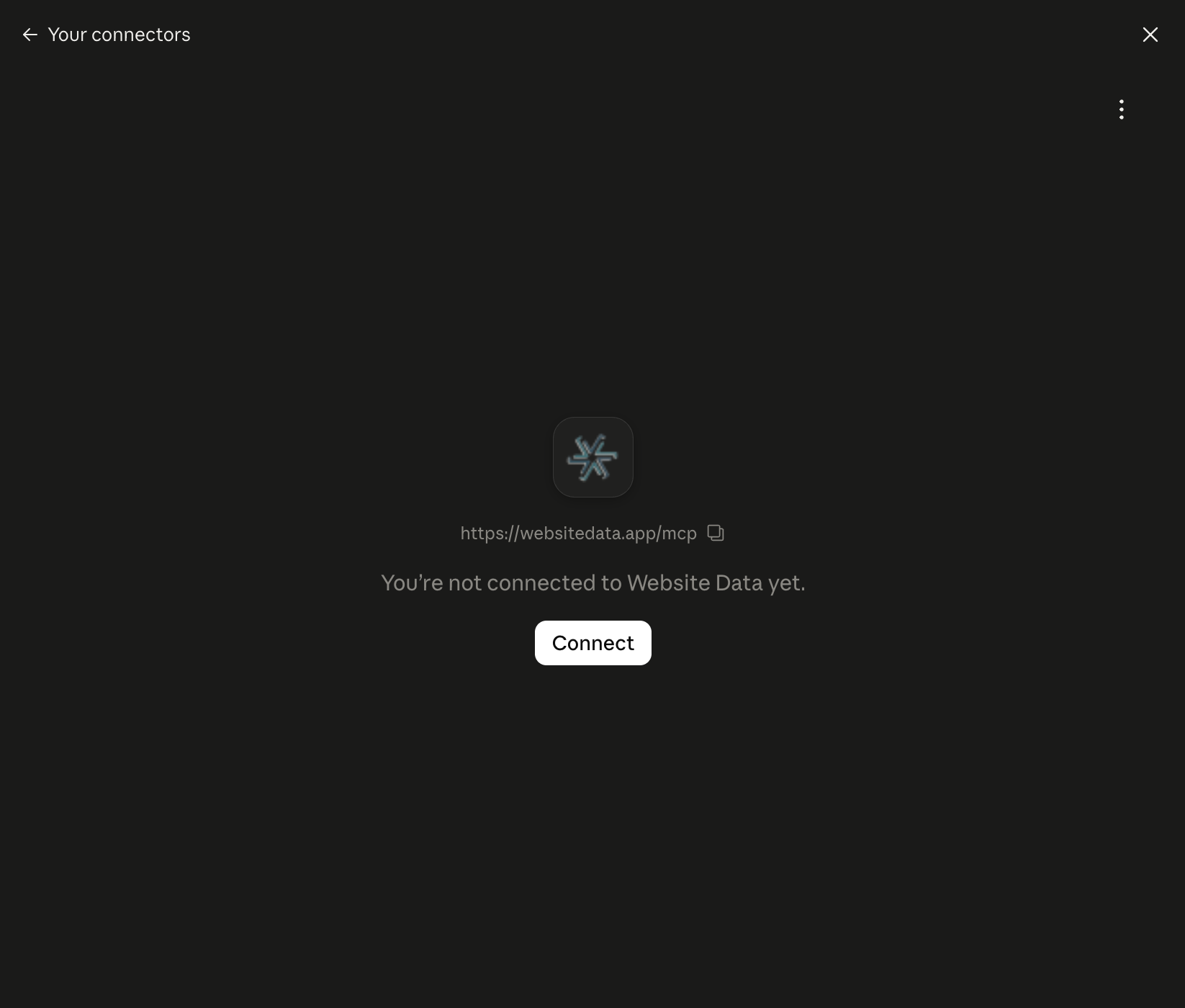 Connect to Website Data.
 -
Follow the sign-in steps in your browser and approve Claude's access to your Website Data account.
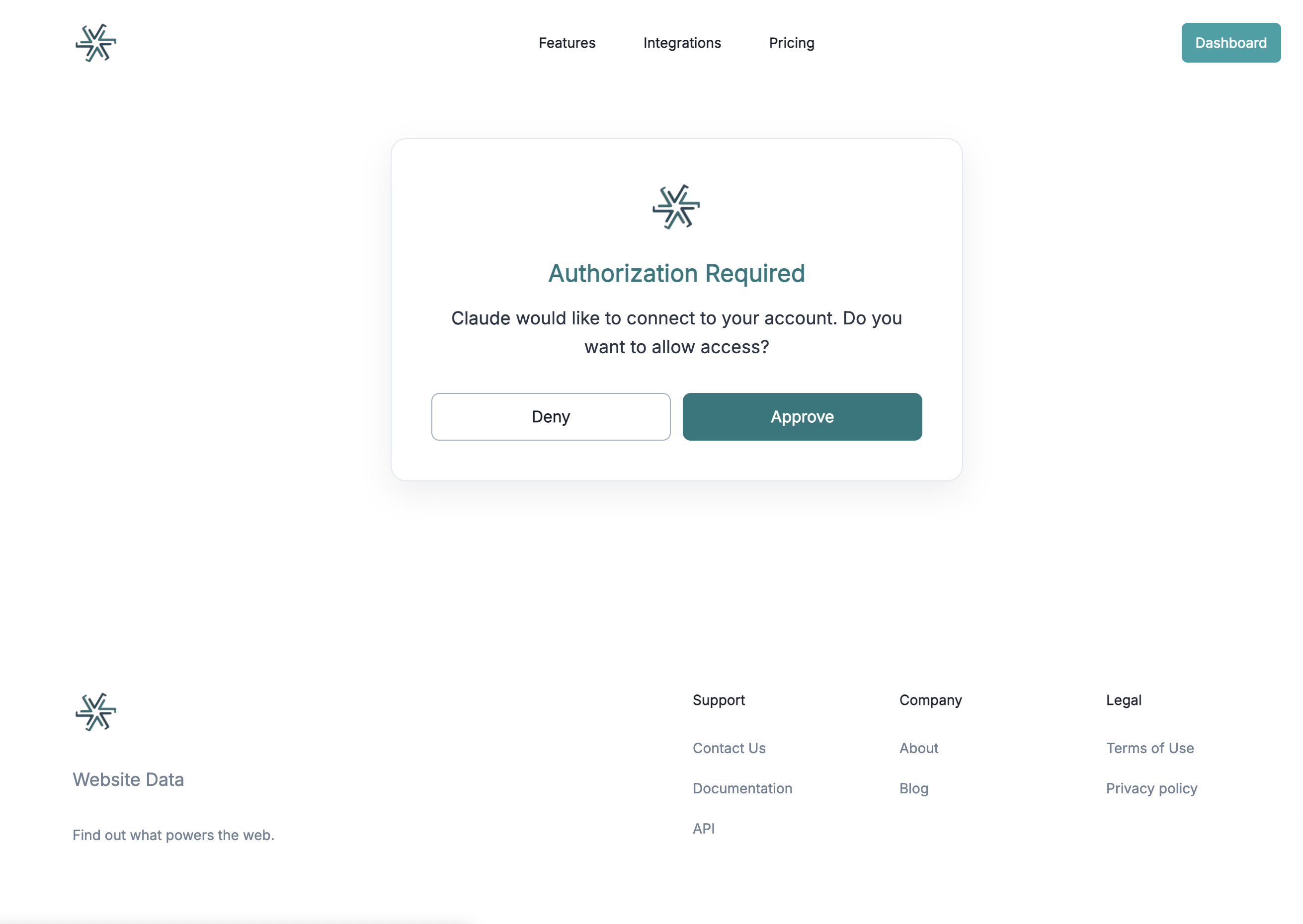 Approve access to your Website Data account.
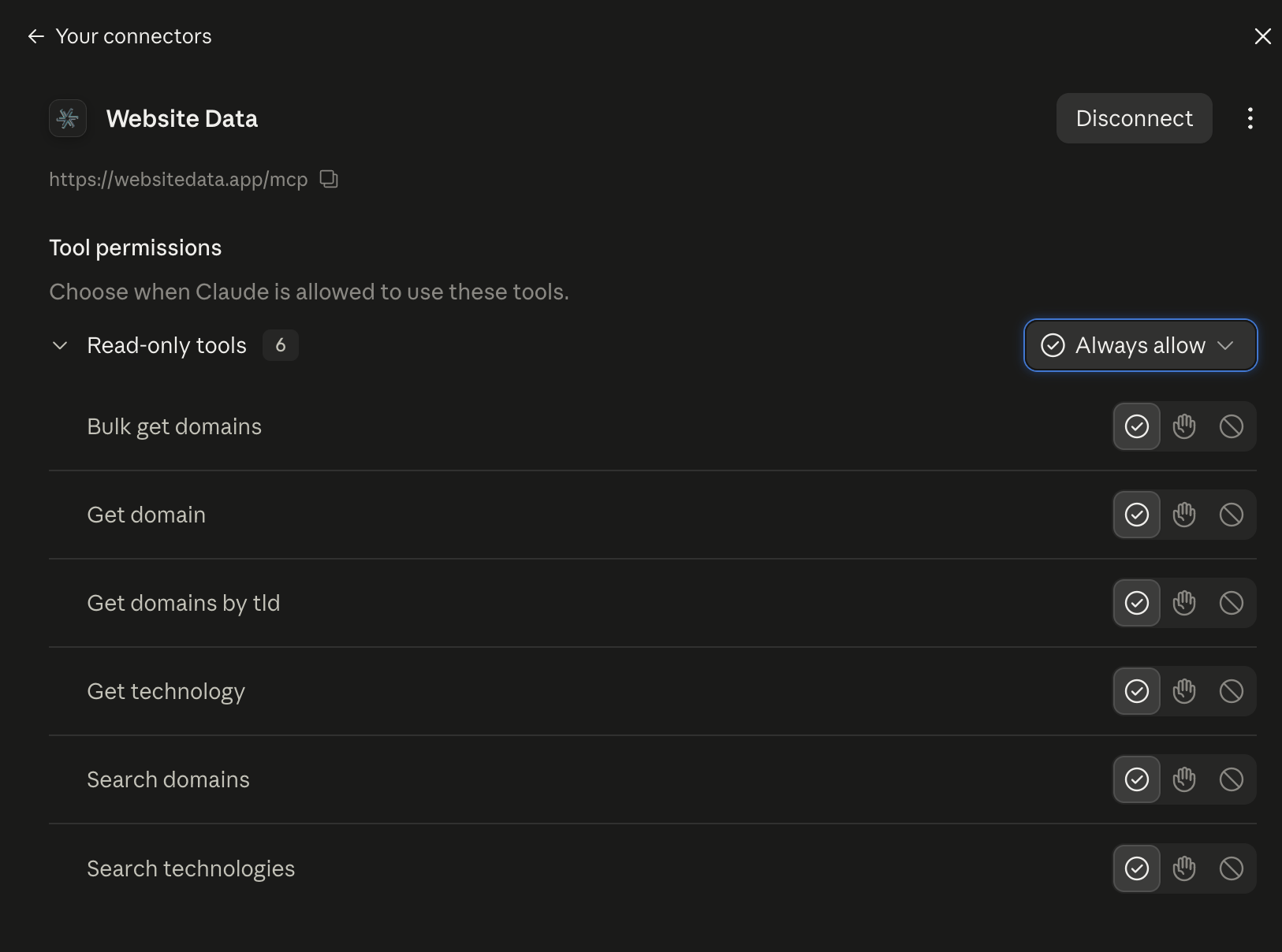
Once connected, you can review the Website Data tools and their permissions in Claude Desktop.
ChatGPT Desktop
In the ChatGPT Desktop app, open Settings, then select Plugins. Open the Add menu and select Add MCP server.

- Select MCP, then choose Streamable HTTP.
-
Enter Website Data for the name and
https://websitedata.app/mcpfor the server URL. - Select Save.
- Select Authenticate, then follow the sign-in and approval steps in the browser window that opens.
Cursor
In Cursor, open Settings and navigate to the MCP section. Add a new server with the following configuration. For step-by-step instructions, see the Cursor MCP documentation.
{
  "mcpServers": {
    "websitedata": {
      "type": "streamable-http",
      "url": "https://websitedata.app/mcp",
      "headers": {
        "Authorization": "Bearer YOUR_API_KEY"
      }
    }
  }
}
Available Tools
The MCP server provides the following tools that AI assistants can use to query Website Data:
Example Prompts
Once connected, you can ask your AI assistant questions like:
- "Look up the domain shopify.com"
- "Search for domains in the US that use WordPress"
- "Find all .io domains in the technology category"
- "What technologies does stripe.com use?"
- "Search for technologies related to analytics"
- "Find domains that use both Google Analytics and Cloudflare"
Privacy & Security
All MCP requests use HTTPS. Your API key is passed as a Bearer token and is required on every request. The MCP server is read-only — it can search and retrieve data but cannot modify anything in your account. See our Privacy Policy for details on how we handle data.
Support
Need help setting up or using the MCP server? Contact support and we'll be happy to help. For more details about the underlying API, see the API Documentation.